

Catch n Trail
Trade price movement with a trailing stop loss.
Set the conditions for order opening, based on the price movement. Works with every pair and timeframe.
Parameters
- Color Theme - choose one of 4 panel themes.
- Zoom - panel size (6).
- Slippage - only for 'Instant Execution'.
- Max Trades
- Max Spread
- Lot Size
- Stop-Loss
- Take-Profit
- S-L Increment
- Trailing Mode - 3 modes or off
- Trigger
- Tolerance
- Reset Timeout
- Idle Timeout
- Max Cycles
- Jump To Break-Even?
- Close Trade Idle?
- Wait For Profit?
- only Own Trades - set to yes for EA to modify/close orders opened by itself only
Features
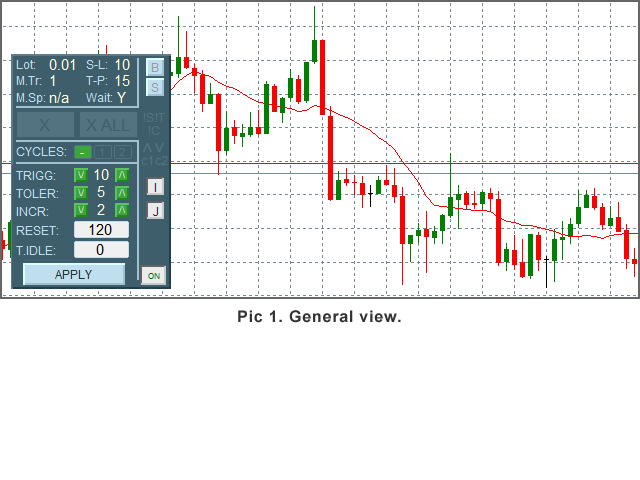
- Parameters display
- only Buy/only Sell Buttons
- Button 'X'(Close) - activates after order opens.
- Button 'X ALL' - close all orders, activates when 2nd order opens.
- 'Max Cycles' Buttons
- In-Panel Form - use to change values of Trigger, Tolerance, timeouts and S-L Increment.
- '!' Indicators - show up when spread > Max Spread, Max Cycles or Max Trades reached.
- Arrow-indicators - current order type.
- Cycle Indicators (c1, c2)
- 'Close Idle' Button
- 'Jump To B-E' Button
- Session On/Off Button
This robot analyses price movement and opens orders when the conditions set by the trader are met. Orders are opened with a trailing SL. There are 3 parameters that control order opening:
- Trigger: price movement, in full pips, that triggers orders.
- Tolerance: max reversal - if the price moves more, the point from which Trigger is calculated is reset to the current price.
- Reset Timeout: in seconds - Trigger is reset when timeout reached and order did not open. Set to 0 to disable (not recommended).
Use the In-Panel Form to change the parameters any time.
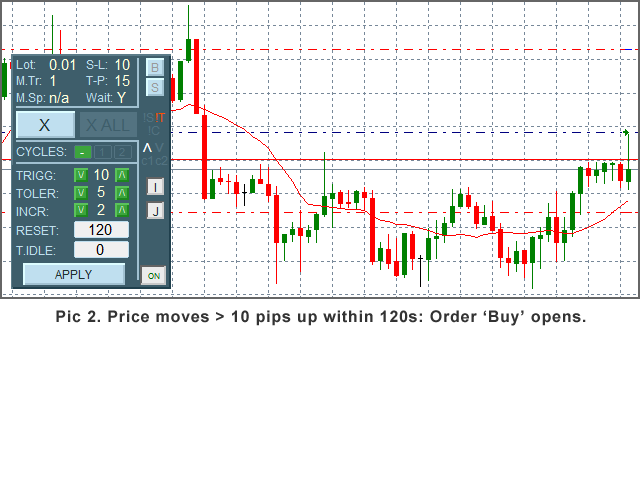
Example: Trigger = 10, Tolerance = 5, Reset = 120. With these settings the order would be opened if the price moved 10 pips in one direction within 120 seconds. If, during its move the price reversed by more than 5 pips, the Trigger's starting point would be reset and the movement would be observed the next 120 seconds.
When you have set your parameters up, open a trading session by clicking the On/Off Button. After the last order has been opened and you decide to not trade any more, just click the button again and no orders will be made by the robot - current orders would still be handled though (e.g. SL modified).
There can be as many orders opened at a time as you set in Max Trades (up to 5). Orders will not be opened if current Spread > Max Spread - useful if you trade fast-moving markets, e.g. economic news.
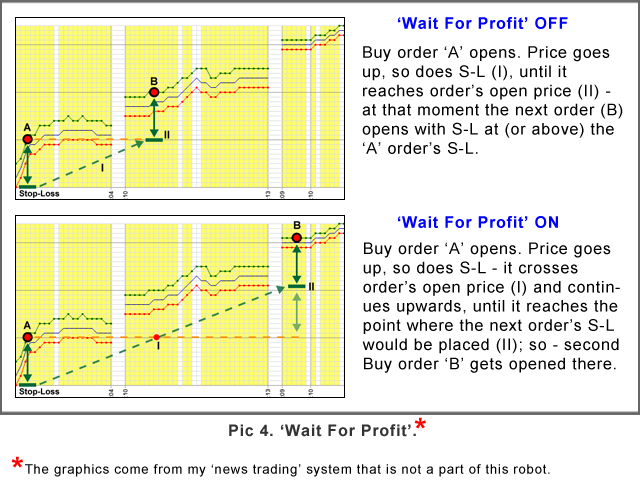
If you have set Max Trades > 1, the next trade will be opened when the price has reached current order's (or most recent if there are 2 or more already) Stop-Loss. If you set Wait For Profit to Y, the next order will be opened when the price reaches the point where the next order's Stop-Loss would be at least equal to the current order's Stop-Loss. Look at the Pic 4. 'Wait For Profit'.
Max Cycles determines the method of trading:
- Unlimited: orders are opened continuously within robot's session;
- 1 Cycle: There may be only one cycle of Buys or Sells (and you can limit it to only one type with clicking B or S button);
- 2 Cycles: e.g. one cycle of Buys followed by one cycle of Sells (if the former not in profit).
Close Idle ('I' Button): close order if current price is better than the Order Price but SL still at loss, has not been modified by more than Idle Timeout and the price is getting near to the order price.
If the Jump To Break-Even is on, SL jumps to order price as soon as it can. The J button on the panel controls the parameter.
You can use the X and X ALL buttons to close trades.
Moving the panel: double-click the top part of the panel, then click, hold and drag the panel to another place. Double-click the area again to keep the panel in the new place.
Notes:
- If you make any changes to the parameters using the MT 'Inputs' window (F7), Max Cycles, Trigger, Tolerance, both timeouts, S-L Increment, Jump To B-E, Close Idle, Wait For Profit will be reset to their initial values. The robot's session will be turned off, turn it back on if you want the robot to keep trading.
- For testing the robot in the Strategy Tester, use the 'Visual Mode' if you want check the 'ONLY' Buttons (B, S). The form and all other buttons (except X and X ALL) do not work in S.T. Session is 'On' during test.
- It is hard to find one set of parameters that would work in all market conditions, therefore the testing usually does not show good results.

状态:离线 发送信件 在线交谈
姓名:顺水的鱼(先生)
职位:投机客
电话:18391752892
手机:18391752892
地区:默认地区
地址:西安市高新区软件园
邮件:3313198376@qq.com
QQ:3313198376
微信:18391752892
阿里旺旺:顺水的鱼waterfish
Skype:3313198376@qq.com